Platform Selection: This section is for users who will select GoogleChat or Both as their ChatPlatform. Teams-only users: skip to CloudFormation Deployment.
What You’ll Create
- Google Cloud Project
- Service Account with JSON credentials
- Enabled Google Chat API
Prerequisites
Before starting, ensure you have:
- Google Cloud Platform account with billing enabled
- Google Workspace account (Business, Enterprise, or Education)
Step-by-Step Setup
1. Create Google Cloud Project
Set Up Project
- Go to Google Cloud Console
- Click Select a project then New Project
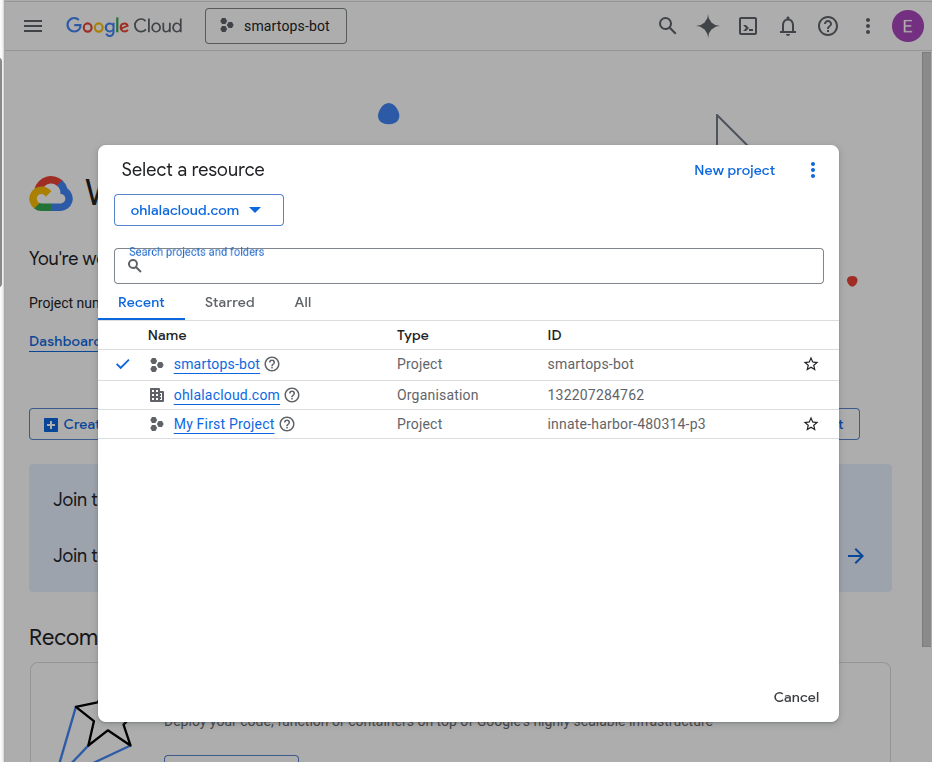
-
Enter project name:
ohlala-smartops(or your preferred name) -
Click Create
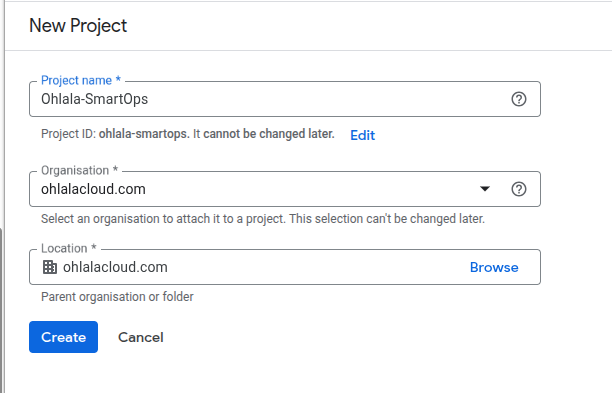
-
Wait for project creation to complete
Important: Note your Project ID (shown below project name). You’ll need this for CloudFormation parameters.
2. Enable Google Chat API
-
In Google Cloud Console, go to APIs & Services then Library
-
Search for Google Chat API
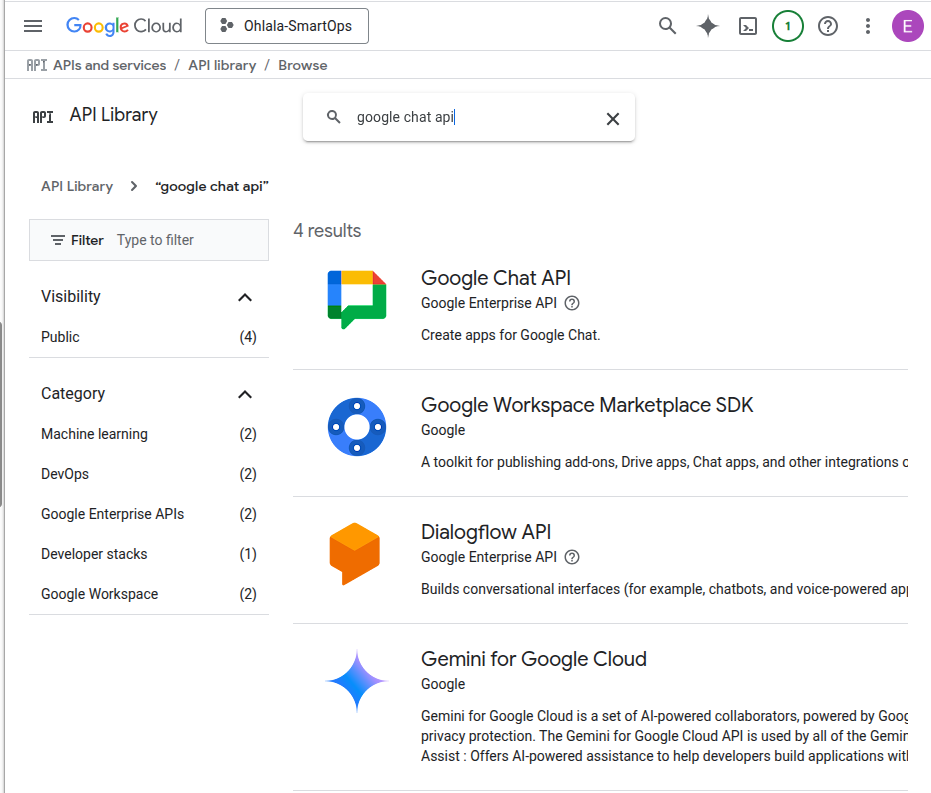
-
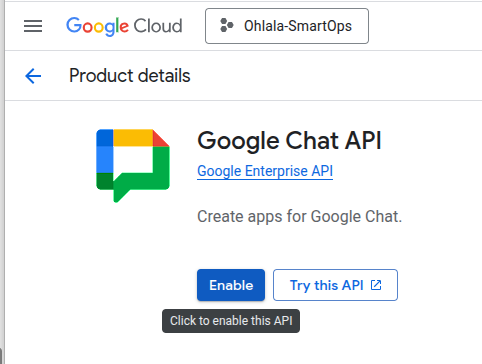
Click Google Chat API
-
Click Enable
3. Create Service Account
Create the Account
- Go to IAM & Admin then Service Accounts
- Click Create Service Account
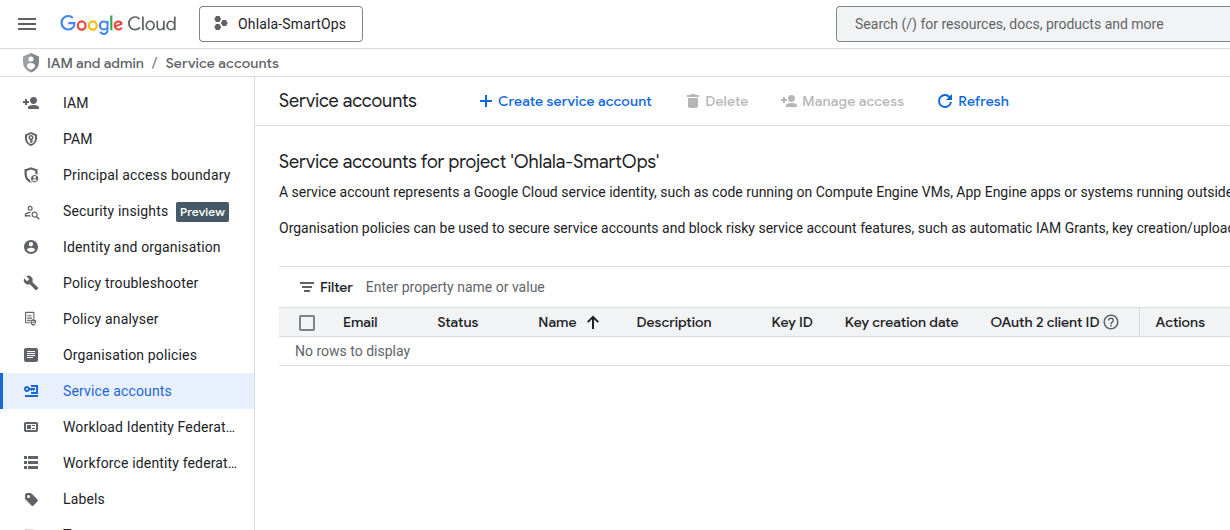
- Enter details:
- Name:
ohlala-smartops-bot - ID:
ohlala-smartops-bot(auto-generated) - Description:
Service account for Ohlala SmartOps Chat app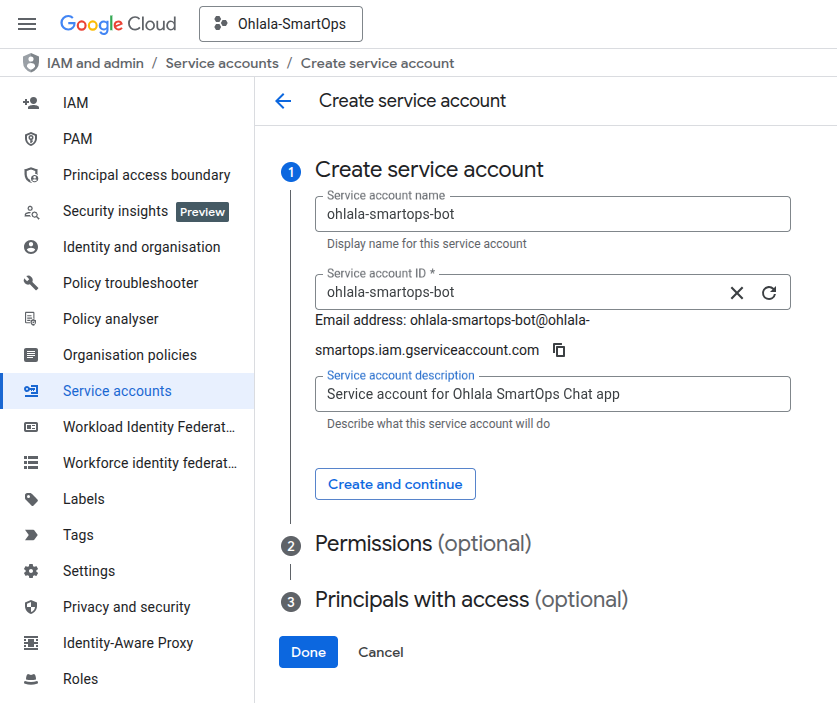
- Name:
- Click Create and Continue
- Skip the optional steps (roles, access)
- Click Done
Generate JSON Key
- Click on your new service account
- Go to Keys tab
- Click Add Key then Create new key
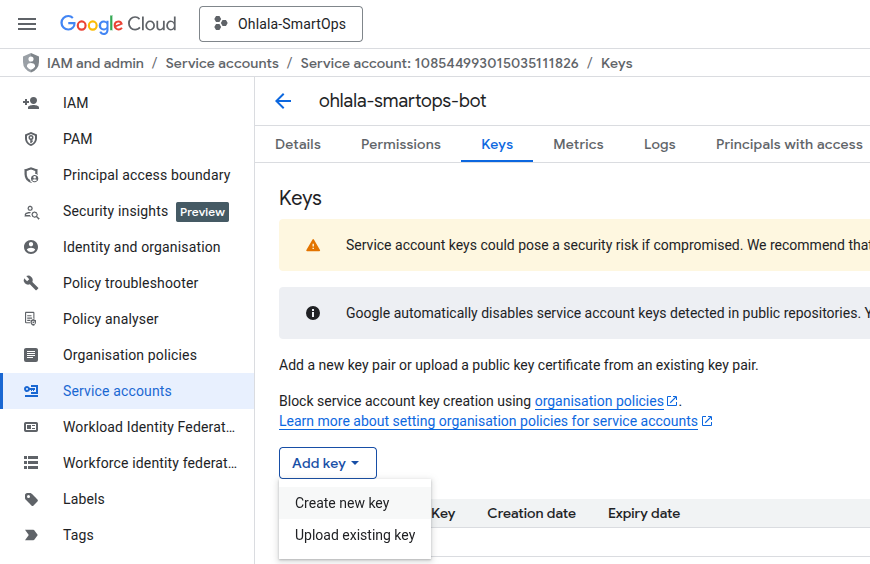
- Select JSON format
- Click Create
- Save the downloaded JSON file securely
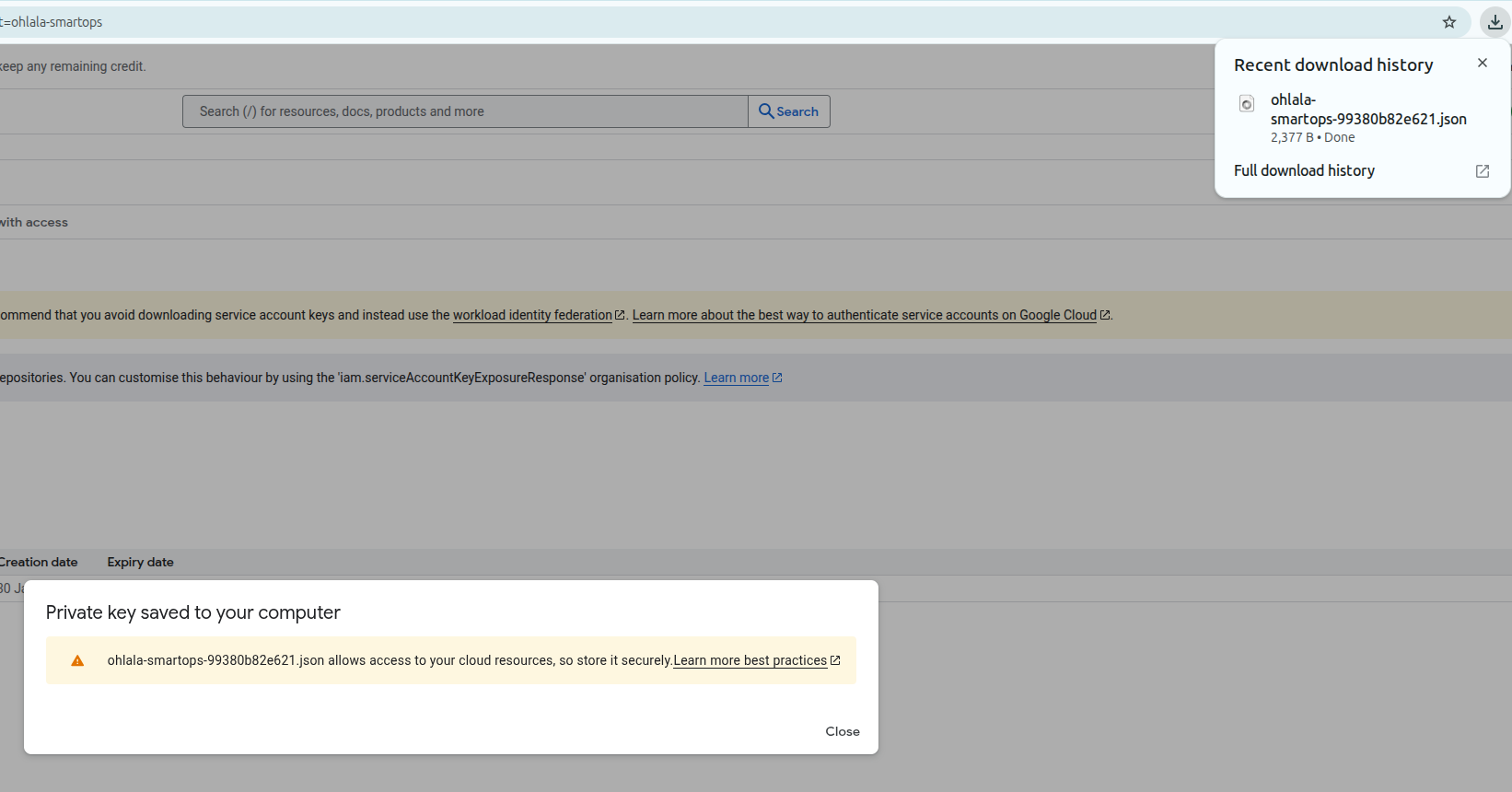
Security: Keep this JSON file secure. It contains credentials that grant access to your Chat app. Never commit it to version control.
4. Prepare Credentials for CloudFormation
You’ll need two values for CloudFormation deployment:
| Credential | CloudFormation Parameter | Where to Find |
|---|---|---|
| Project ID | GoogleChatProjectId |
Visible in Google Cloud Console (top bar or project settings) |
| Service Account JSON | GoogleChatServiceAccountInfo |
Downloaded JSON file (converted to single line) |
Convert JSON to Single Line
The service account JSON must be on a single line for CloudFormation. Use one of these methods:
Linux/Mac:
cat service-account.json | jq -c
Windows (PowerShell):
Get-Content service-account.json | ConvertFrom-Json | ConvertTo-Json -Compress
Tip: Copy the output and paste it directly into the CloudFormation
GoogleChatServiceAccountInfo parameter.
Summary
At this point, you should have:
- Google Cloud Project created
- Project ID noted for CloudFormation
- Google Chat API enabled
- Service Account created
- JSON key downloaded and converted to single line
Next Step
You’re ready to deploy the CloudFormation stack with your Google Chat credentials: