Connect to Google Chat
What You’ll Configure
- Chat app settings with webhook URL
- App visibility and permissions
- Bot installation in Google Chat
Prerequisites
Before starting, ensure you have:
- Google Cloud Project created with Chat API enabled (Google Cloud Setup)
- CloudFormation stack deployed with ChatPlatform set to
GoogleChatorBoth - GoogleChatWebhookURL from CloudFormation stack outputs
Integration Steps
1. Get the Webhook URL
- Go to AWS CloudFormation Console
- Select your stack
- Go to the Outputs tab
- Copy the GoogleChatWebhookURL value
The URL looks like: https://xxx.execute-api.region.amazonaws.com/prod-stackname/api/google-chat
2. Configure Chat App
Access Chat API Configuration
- Go to Google Chat API Configuration
- Or navigate: APIs & Services then Enabled APIs then Google Chat API then Configuration
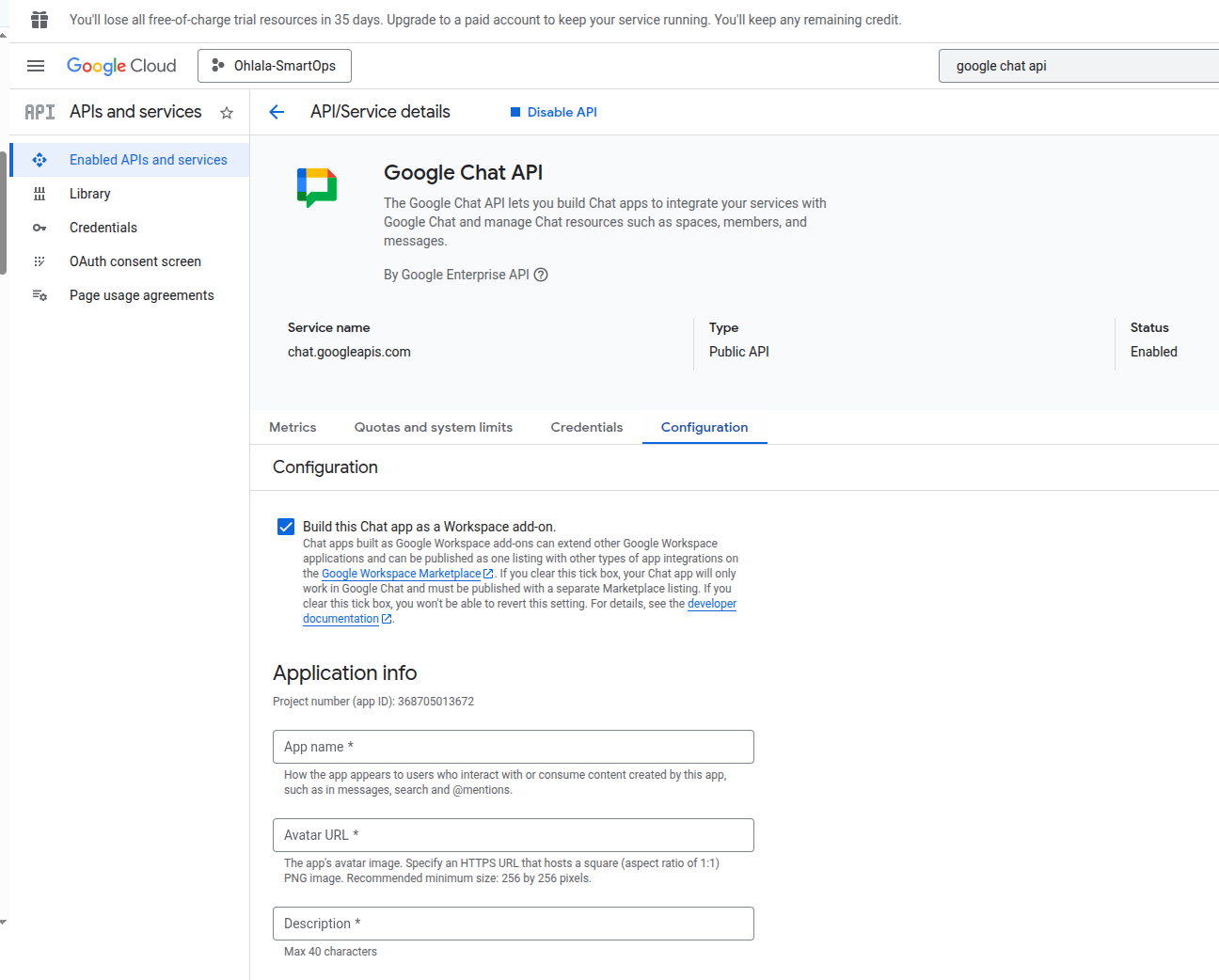
Fill App Information
App name: Ohlala SmartOps
Avatar URL: https://767397776277-marketplace.s3.us-east-1.amazonaws.com/Ohlala_logo.png
Description: AI-powered AWS infrastructure management assistant
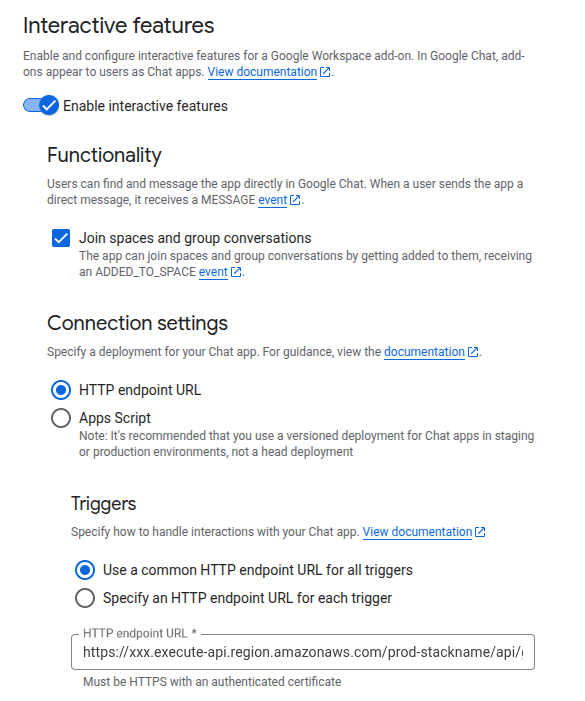
Enable Interactive features: ON
Configure App URL
Functionality: Select both:
- Receive 1:1 messages
- Join spaces and group conversations
Connection settings:
-
Select HTTP endpoint URL > Use a common HTTP endpoint URL for all triggers
-
Enter your Google Chat webhook URL from CloudFormation outputs:
https://xxx.execute-api.region.amazonaws.com/prod-stackname/api/google-chat
Authentication Audience: Select App URL
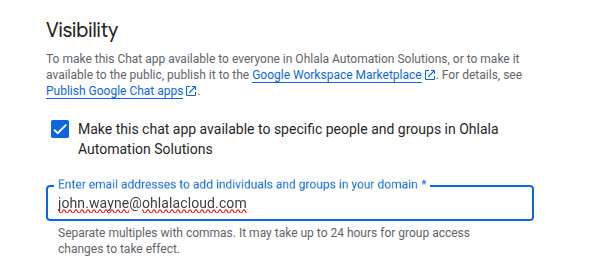
Set Visibility
- Select “Make this Chat app available to specific people and groups”
- Click Add people or groups
- Enter email addresses of all users who need access to the bot
- Click Save
3. Add Bot to Google Chat
For Personal Use (Direct Message)
- Open Google Chat
- Click + New chat then type “smartops”
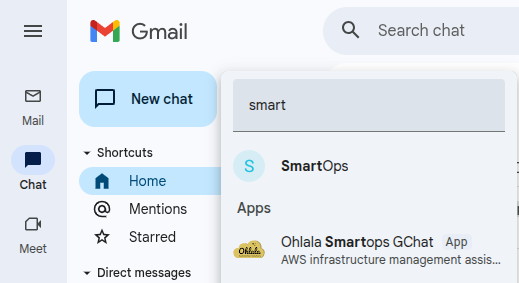
- Search for Ohlala SmartOps
- Click on the app
- Click Add
- Start chatting directly with the bot
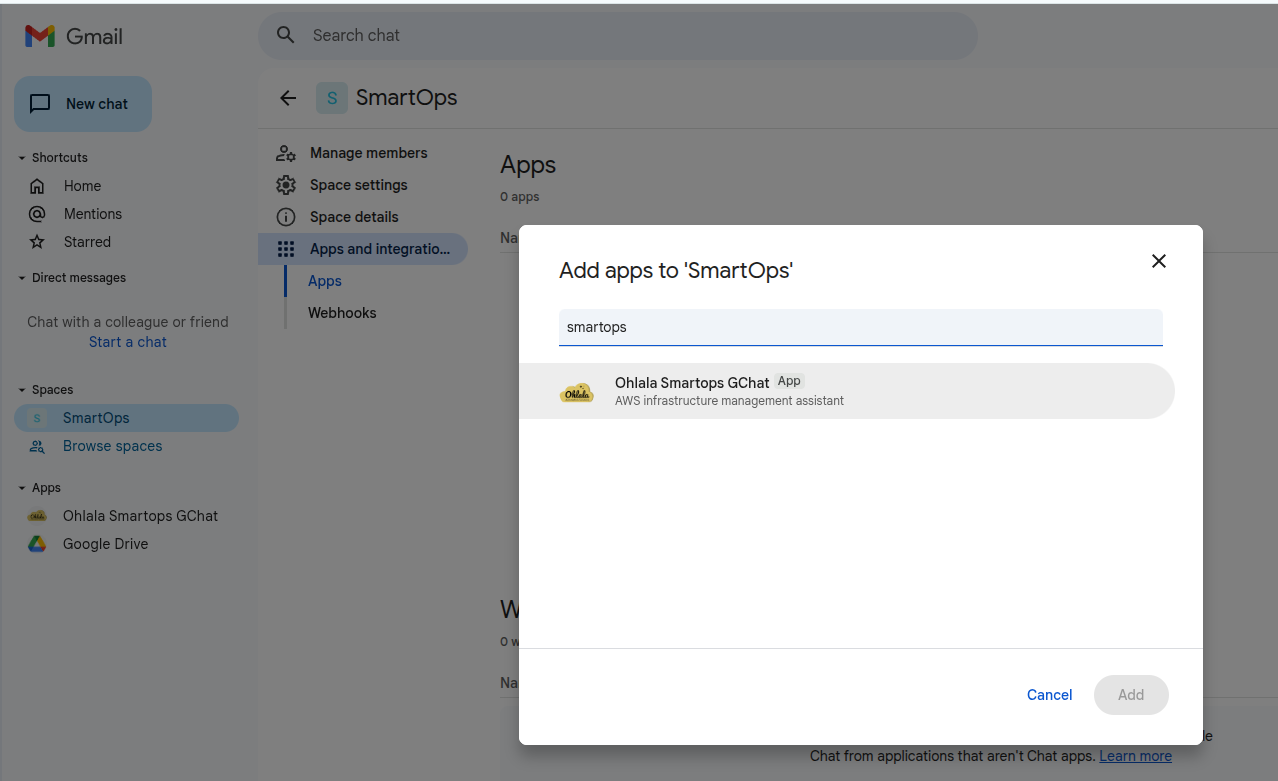
For Space Use (Group)
- Open or create a Google Chat space
- Click the space name then Integrations
- Click Add apps
- Search for Ohlala SmartOps
- Click Add
- The bot will appear in the space
Test the Connection
Send Test Message
In Google Chat, message the bot:
@Ohlala SmartOps hello
Or in a direct message:
hello
Expected response:
Hello! I’m Ohlala SmartOps, your AI-powered AWS infrastructure assistant. Type ‘/help’ to see what I can do for you.
Test Basic Command
Try a simple command:
/help
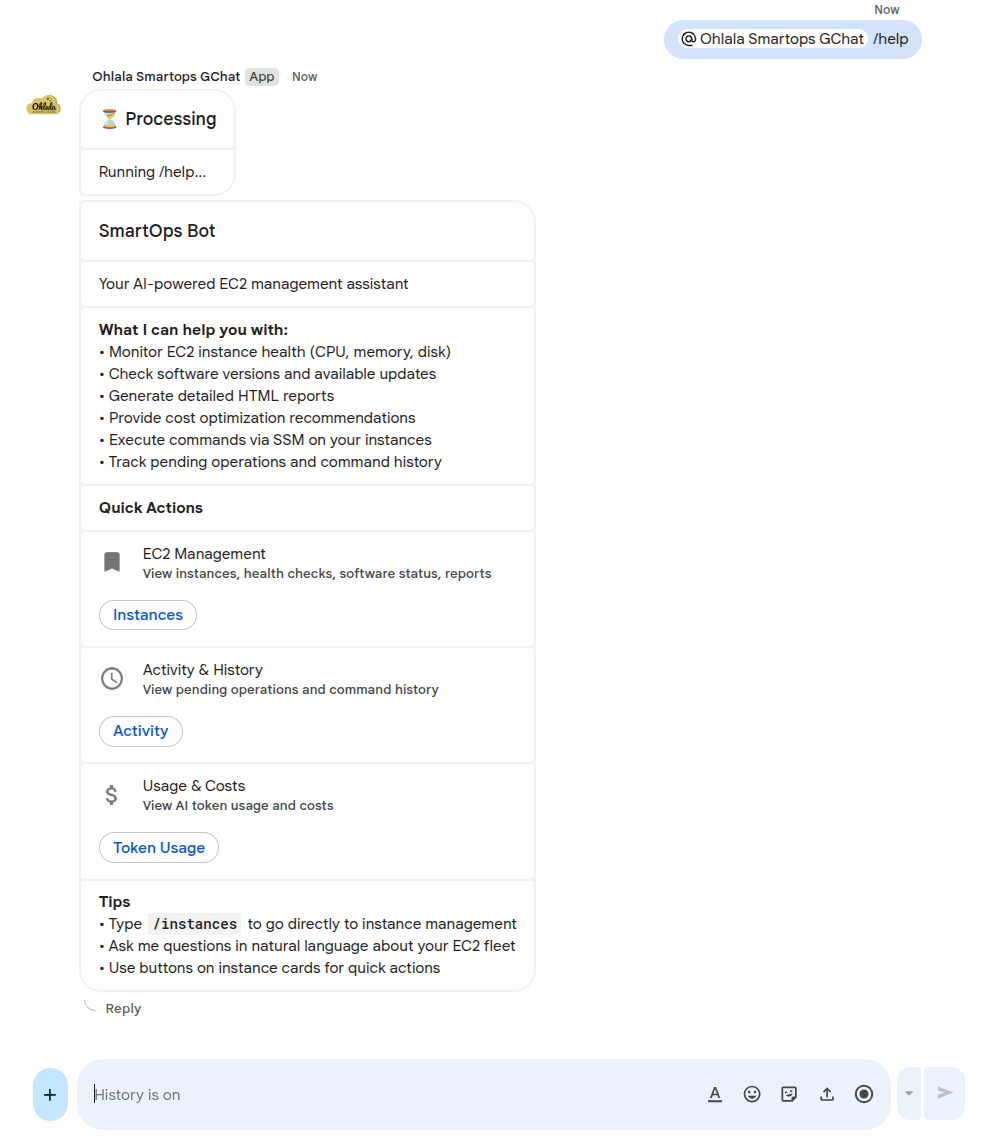
The bot should respond with a help card showing available commands.
Verify Integration
Check Google Chat API
- Go to Google Cloud Console
- Navigate to APIs & Services → Dashboard
- Find Google Chat API
- Click to see usage metrics
Check AWS CloudWatch Logs
- Go to CloudWatch → Log Groups
- Find
/aws/ecs/ohlala-smartops-... - Look for logs containing
google-chator incoming POST requests - Verify requests are being received and processed
Monitor API Gateway
- Go to API Gateway Console
- Select your API
- Go to Dashboard
- You should see requests to
/api/google-chatendpoint
Troubleshooting
Bot Not Responding
Check Webhook URL
- Verify URL in Google Chat API Configuration matches CloudFormation output
- Ensure it includes the full path with
/api/google-chat
Check ECS Service
- Go to ECS Console
- Verify service has running tasks
- Check task logs for errors
Verify Google Chat is Enabled
- Check CloudFormation parameter
ChatPlatformisGoogleChatorBoth - Verify ECS task has the environment variable set
“App Not Found” in Search
Causes:
- App visibility not configured correctly
- You’re not in the allowed users/groups list
- App not yet published (may take a few minutes)
Solution:
- Go to Chat API Configuration
- Check Visibility settings
- Add your email to allowed users
- Wait a few minutes and try again
Authentication Errors
Symptoms: 401 or 403 errors in CloudWatch logs
Solution:
- Verify service account JSON was correct in CloudFormation
- Check the JSON was properly formatted (single line, no extra quotes)
- Verify Project ID matches the service account’s project
- Check Lambda authorizer logs for specific error messages
“Service Unavailable” Error
Causes:
- ECS task not running
- API Gateway misconfigured
- JWT validation failing
Solution:
- Check ECS service is running
- Verify API Gateway deployment
- Check CloudWatch logs for Lambda authorizer errors
- Verify the audience URL in Chat API Configuration matches your endpoint
Card Rendering Issues
Google Chat uses a different card format than Teams. If cards don’t render correctly:
- Check CloudWatch logs for card formatting errors
- Verify the QuickChart sidecar container is running in ECS
- Check S3 bucket for chart images (if using charts)
Google Chat vs Teams Differences
| Feature | Google Chat | Microsoft Teams |
|---|---|---|
| Card Format | Google Card JSON | Adaptive Cards |
| Authentication | Service Account + JWT | Azure AD + Bot Framework |
| Charts | Uploaded to S3 as images | Rendered inline |
| Message Updates | Limited support | Full support |
| @mentions | Required in spaces | Optional |
Success Checklist
Confirm everything is working:
- Chat app configured with correct webhook URL
- App visibility settings allow your access
- Bot appears in Google Chat app search
- Bot responds to messages
- Help command works
- No errors in CloudWatch logs
Next Step
Your bot is connected to Google Chat! Now verify everything is working:
Continue to Verification & Testing →